Access Policy
Access Policy defines the conditions under which users and devices are permitted to access resources within the COSGrid environment.
It acts as a decision-making layer, combining multiple contextual parameters to enforce Zero Trust access control.
Access is granted only when all defined conditions are satisfied, ensuring that:
Users are trusted
Devices are compliant
Access occurs within approved conditions
Policy Parameters
Access Policies can be configured using the following parameters:
Operating System (OS)
Restrict access to specific OS types (e.g., Windows, macOS, Linux)Location
Allow or restrict access based on:Geographic region
IP-based location
Device
Permit access only from trusted or registered devicesSchedule & Days
Define specific days when access is allowedTime Range
Set time-based access windows
(e.g., 10:00 AM – 06:00 PM)Device Posture Check (DPC)
Enforce device security compliance before granting accessSecurity Settings
Apply additional restrictions as required
Navigation: Login → Navbar → Organization → Configure → Access Policy
.webp)
Key Features
Search: Quickly locate specific access policies.
Download: Export policy configurations for:
Backup
Audit
Compliance
Column Customization: Customize table columns for better visibility.
View: Inspect detailed policy configuration.
Edit: Modify existing policies.
Delete: Remove outdated or unused policies.
Creating an Access Policy
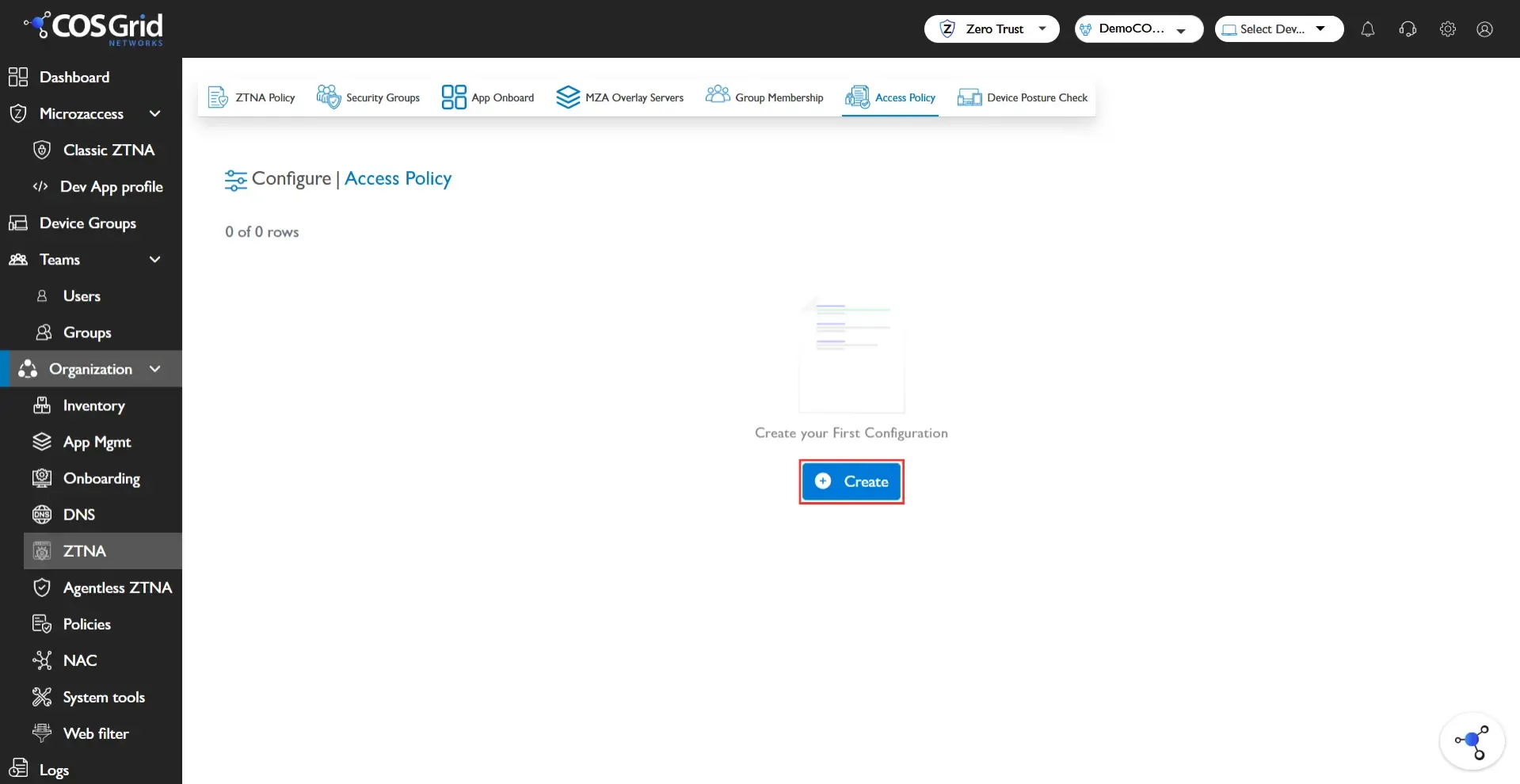
Step 1: Initiate, Click Add to open the Access Policy configuration panel.
Step 2: Configure Policy, Enter the required details.
Policy Name: Provide a unique name
OS: Select allowed operating system(s)
Location: Choose allowed geographic region(s)
Device: Assign trusted device(s)
Schedule & Days: Select permitted days
Time Range: Define allowed access time window
Security Settings: Apply additional restrictions if required
DPC (Device Posture Check): Attach an existing DPC policy or create a new one
Step 3: Save, Click Add to create the Access Policy.
Example Configuration
Objective
Allow controlled access for Windows devices under specific conditions.
Configuration
Parameter | Value |
Policy Name | Example_AP |
OS | Windows |
Location | India |
Device | Test |
Schedule & Days | Monday, Saturday |
Time Range | 10:00 AM – 06:00 PM |
DPC | Example_DPC |
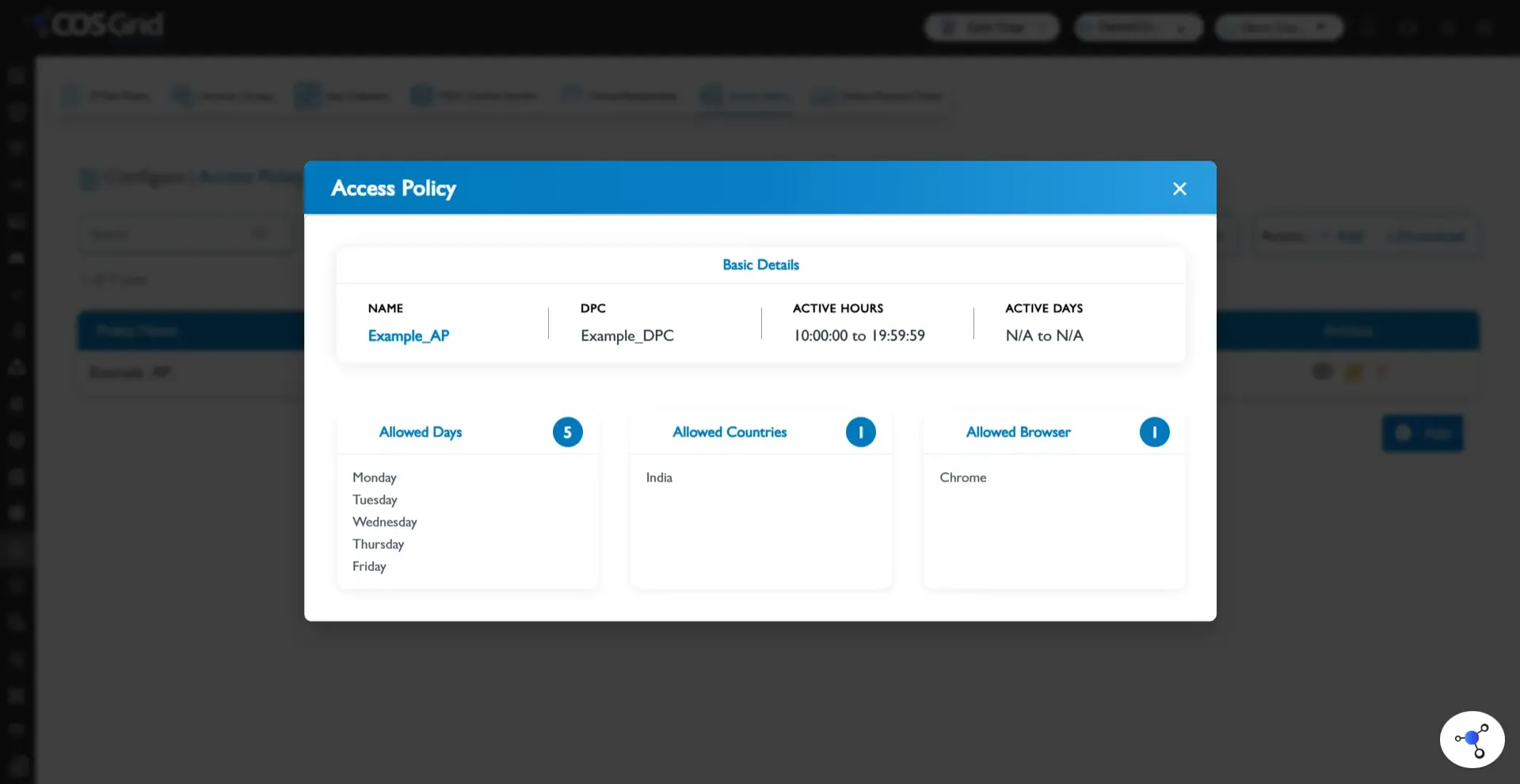
Steps
Navigate to Configure → Access Policy
Click Add
Enter:
Policy Name: Example_AP
Select:
OS: Windows
Location: India
Add:
Device: Test
Configure:
Schedule & Days: Monday, Saturday
Time Range: 10:00 AM – 06:00 PM
Attach:
DPC: Example_DPC
Click Add to save
Result
Access is granted only if all conditions are met:
User is on a Windows device
Device is trusted and compliant (DPC)
Access request originates from India
Request occurs on Monday or Saturday
Time is within 10:00 AM – 06:00 PM
Best Practices
Follow least-privilege access principles
Avoid overly broad policies (e.g., Any OS, Any Location)
Always combine DPC + Device + Location for stronger security
Use time-based restrictions for sensitive applications
Maintain proper policy priority (sequence)
Regularly audit and update policies
Role in Zero Trust Architecture
Access Policy acts as the central enforcement layer, integrating with:
Group Membership → Identity-based access
App Onboard → Application exposure
Security Groups → Traffic control
Device Posture Check (DPC) → Device validation
MZA Overlay Servers → Group distribution
Together, they enable:
Context-aware access control
Dynamic policy enforcement
End-to-end Zero Trust security