Agent Installation Overview:
Once you have successfully logged in, you will be redirected to the Dashboard, where you can monitor your environment and manage configurations.
The Navigation Bar is located on the left-hand side of the screen and provides access to all key modules.
Before proceeding with the installation, ensure that all system requirements are met. Please review the Pre-Requisite section before installation:
Downloading the MZA Client
To download and install the COSGrid MZA Client on your system, follow the steps below:
Navigation Path: Sidebar → Organization → Onboarding → Client Onboard
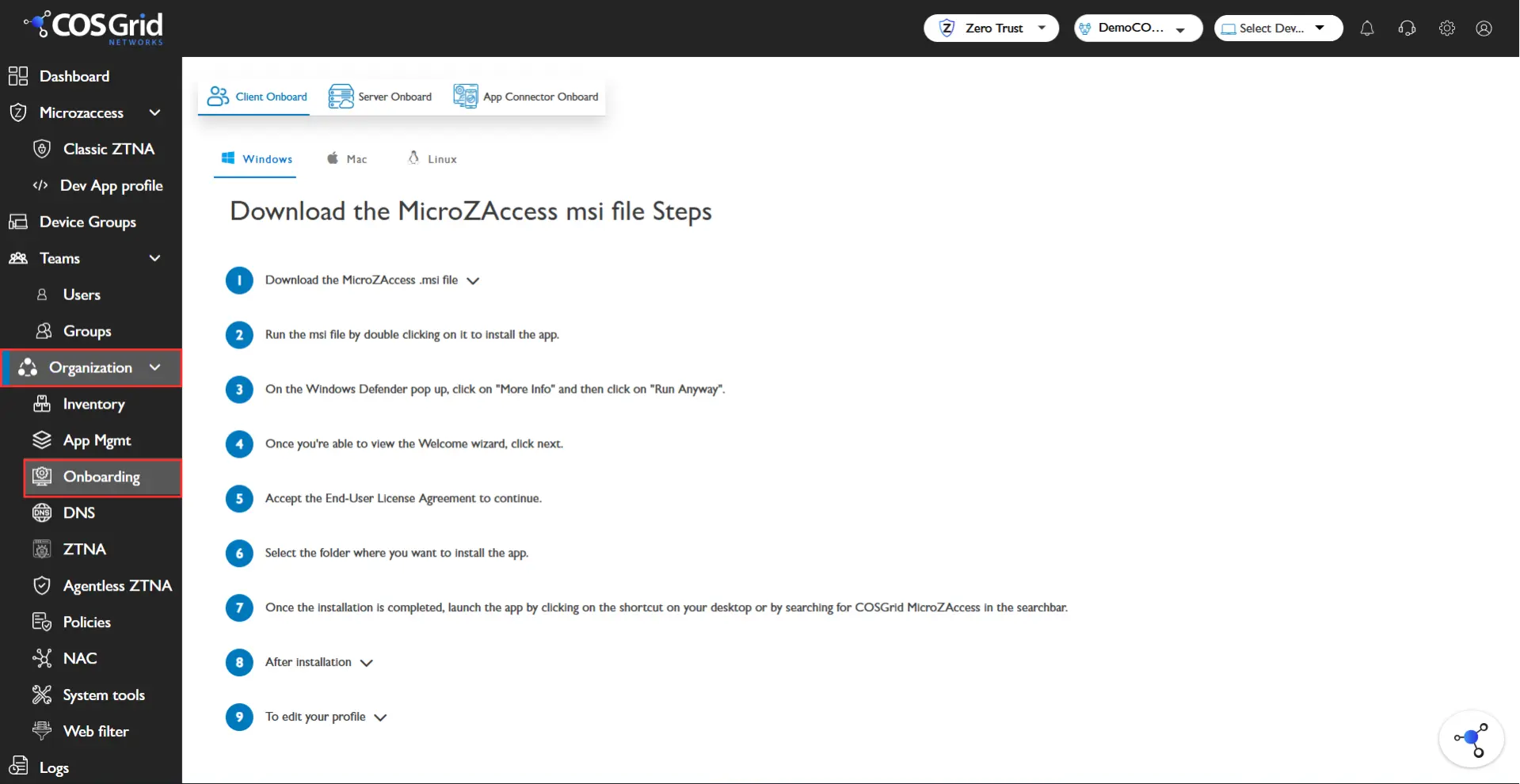
Step-by-Step Navigation
Go to the Navigation Bar
Click on Organization
Select Onboarding
Click on Client Onboard
Follow the instructions and complete the installation
Reference
The image below illustrates the navigation flow to the Client Onboard section for downloading the MZA Client.
Important Notes
Ensure your system meets all prerequisites before downloading the client.
Administrative privileges may be required to install the agent.
A stable internet connection is recommended during installation.
After installation, verify that all COSGrid services are running properly.
Once the installation is complete:
Launch the COSGrid Endpoint App
Log in using your credentials
Confirm that the device is successfully onboarded