Device Posture Check (DPC)
Device Posture Check (DPC) ensures that only compliant and secure devices are granted access to organizational resources within the COSGrid environment.
Access decisions are made based on the security posture of the device, evaluated against predefined policies. This enforces Zero Trust principles, where device trust is continuously validated before granting access.
Supported Operating Systems
COSGrid currently supports DPC policies for:
Windows
Linux
macOS
Android
iOS
Each operating system supports a specific set of security checks tailored to its platform capabilities.
Navigation: Login → Navbar → Organization → Configure → DPC
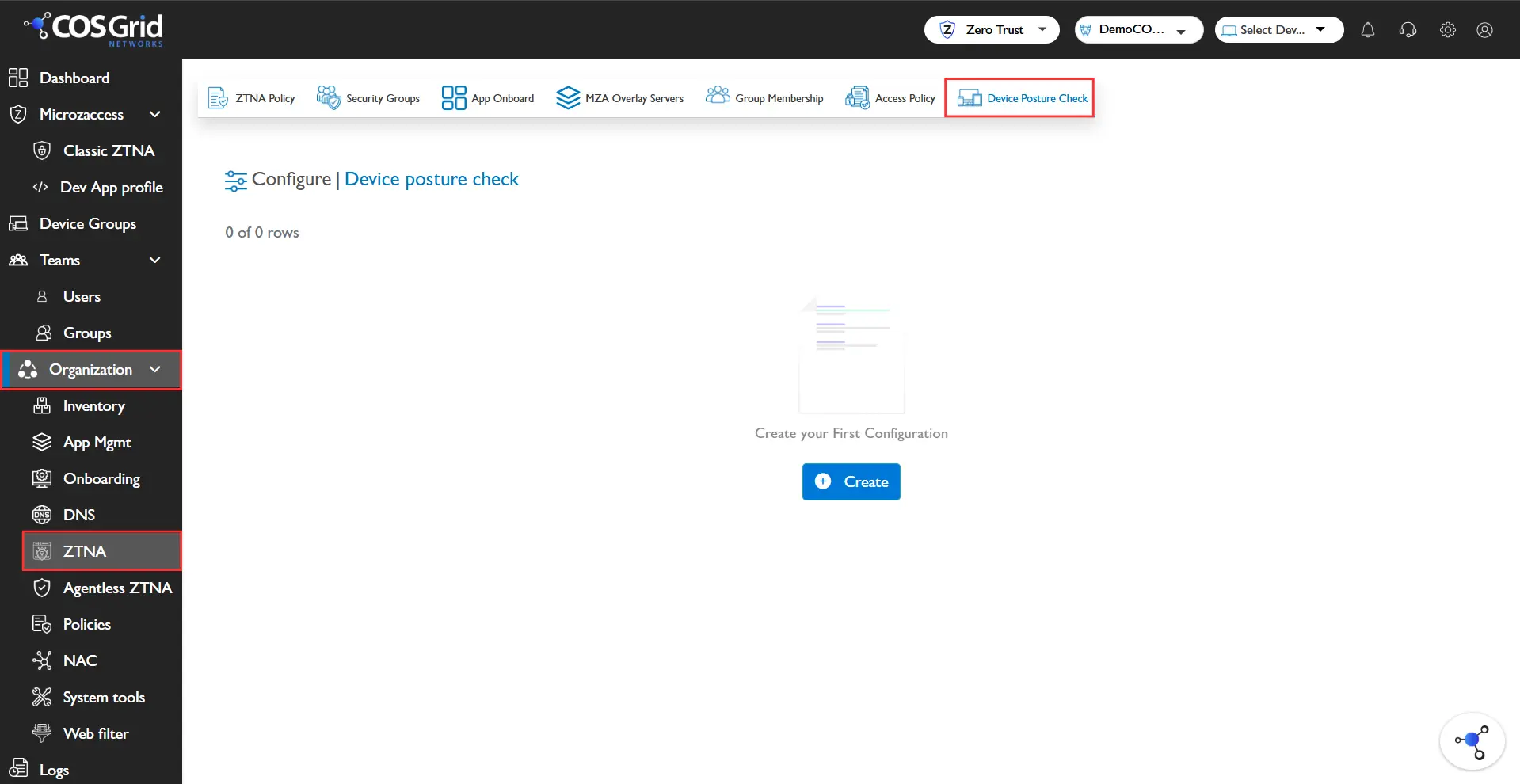
Key Features
Search: Quickly locate specific DPC policies.
Download: Export policy configurations for:
Compliance reporting
Auditing
Backup
Column Management: Customize table columns for improved visibility and management.
Edit: Modify existing DPC policies.
Delete: Remove outdated or unused policies.
Supported Security Checks
DPC policies allow enforcing multiple security parameters depending on the OS.
Windows
Antivirus status (installed and active)
Firewall status (enabled/disabled)
OS version compliance
System update status
Disk encryption (if applicable)
Linux
OS version validation
Firewall status
Running security services
Package/update compliance
macOS
Firewall status
System integrity and OS version
Disk encryption (FileVault)
Security updates
Android
Device lock (PIN/Pattern/Biometric)
OS version compliance
Root detection
Security patch level
iOS
Device lock enabled
OS version compliance
Jailbreak detection
Security posture validation
Creating a DPC Policy
.webp)
Step 1: Navigate: Organization → Configure → DPC
Step 2: Initiate
Click Add to open the DPC configuration panel.
Step 3: Configure Policy
Enter the required details:
Name
Unique identifier for the DPC policySelect OS
Choose one:Windows
Linux
macOS
Android
iOS
Security Checks
Select applicable checks based on the chosen OS
Step 4: Save
Click Add to create the DPC policy.
Example Configuration
Objective
Ensure that only secure Windows devices can access resources.
Configuration
Parameter | Value |
Name | Example_DPC |
OS | Windows |
Security Checks | Antivirus, Firewall |
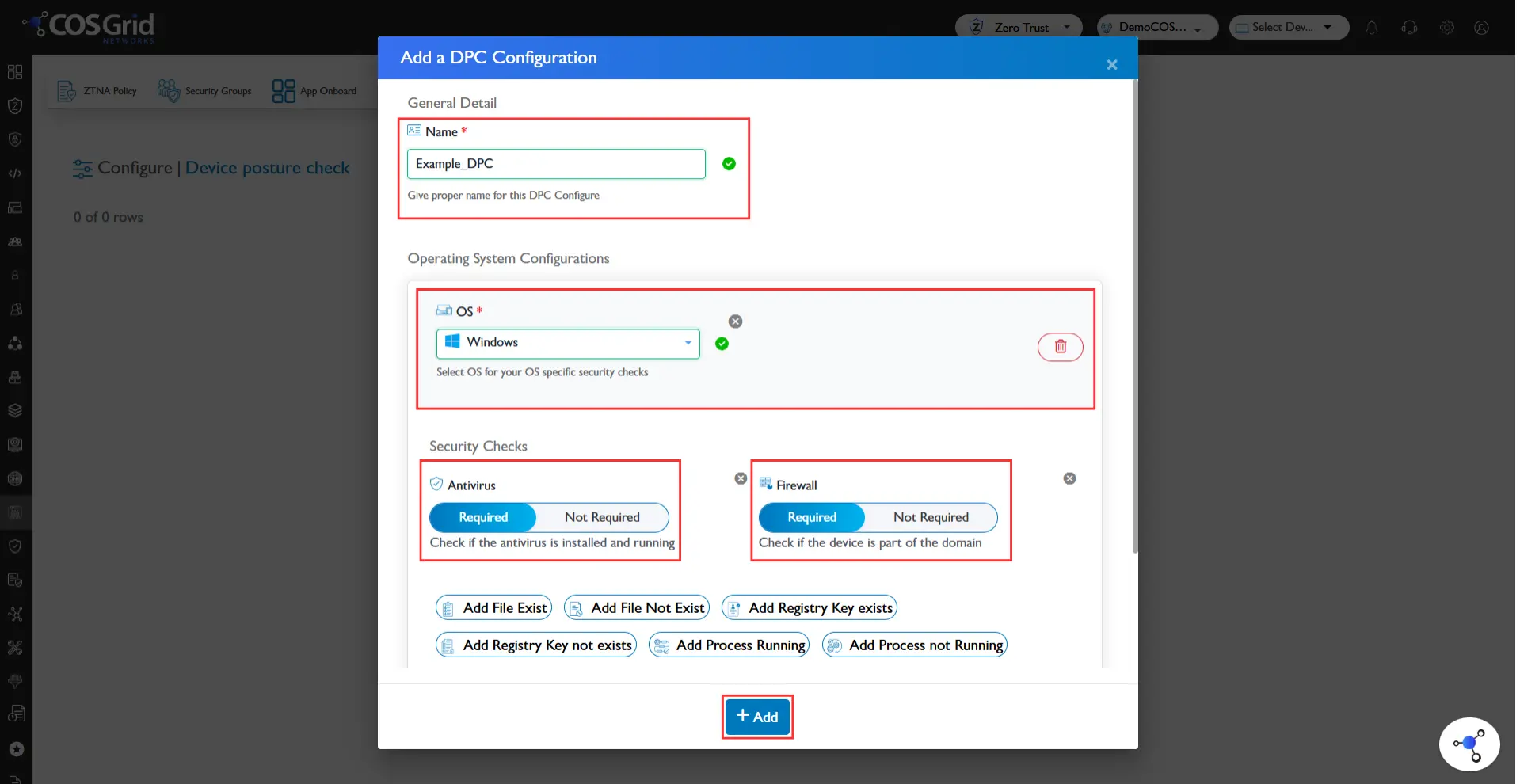
Steps
Click Add
Enter:
Name: Example_DPC
Select:
OS: Windows
Under Security Checks:
Enable Antivirus
Enable Firewall
Click Add
Result
Only Windows devices that:
Have an active Antivirus
Have Firewall enabled
will be allowed to access organizational resources.
Best Practices
Enforce minimum security baselines for all devices
Combine multiple checks (e.g., Antivirus + Firewall + OS version) for stronger security
Avoid overly permissive policies
Regularly review and update policies
Apply DPC policies along with:
Security Groups
Application Access Policies
How DPC Fits in Zero Trust
DPC plays a critical role in Zero Trust by ensuring:
Device Trust Verification before access
Continuous posture validation
Reduced risk from compromised endpoints
It works alongside:
Identity-based access control
Network-level restrictions
Application-level policies