Security Groups
A Security Group defines a set of access control rules that regulate how users, devices, and applications interact with resources within the COSGrid environment.
It acts as a logical access boundary (virtual entry pass):
When incoming traffic matches defined rules, access is granted.
When conditions do not match, access is automatically denied.
This mechanism enforces Zero Trust principles, ensuring that only explicitly authorized communication is allowed at every stage.
Navigation : Organization → Configure → Security Groups
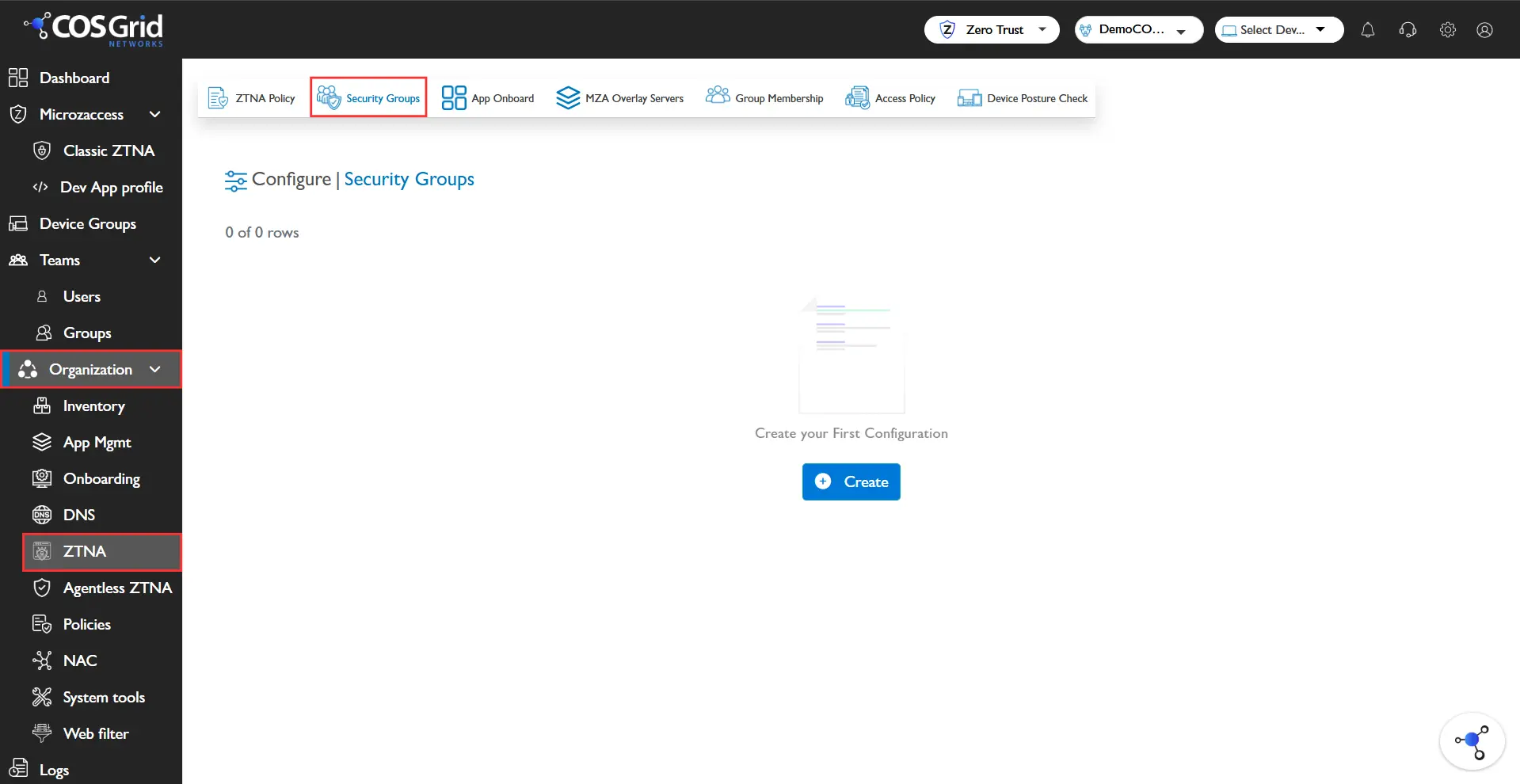
Security Group Components
Each Security Group consists of the following elements:
1. Name
A unique identifier for the security group.
Example: ALL, Allow_HTTP_HTTPS
2. Protocol
Defines the network protocol to which the rule applies:
TCP
UDP
ICMP
Custom protocols
3. Destination Port
Specifies the target port(s) for the traffic:
Single port (e.g., 80, 443)
Port range (e.g., 1000–2000)
Any (all ports)
4. Source Type
Determines the origin of traffic:
Any – Allows traffic from all sources
Custom – Restricts traffic based on:
IP Address
Subnet
User/Device Groups
5. Host
Specifies the endpoint or server associated with the rule.
6. Groups
Defines user or device groups linked to the rule for access control.
7. Subnet
Indicates the network segment where the rule is applicable.
8. Actions
Provides options to:
Edit rules
Delete rules
Key Features
Add New Rule: Create a new security rule with customizable parameters using the Add button.
Download Configuration
Export Security Group configurations for:Auditing
Backup
Compliance requirements
Column Customization
Customize table view by selecting specific fields for better visibility and management.
Common Use Cases
Least Privilege Access
Restrict access strictly to required resources.Protocol-Based Restrictions
Example: Allow only HTTPS (Port 443), block HTTP (Port 80).Network Segmentation
Isolate environments using subnet-based rules.Granular Access Control
Apply rules to specific hosts, users, or device groups.Universal Access Rules
Configure broad access for testing or internal trusted environments.
Creating and Configuring a Security Group
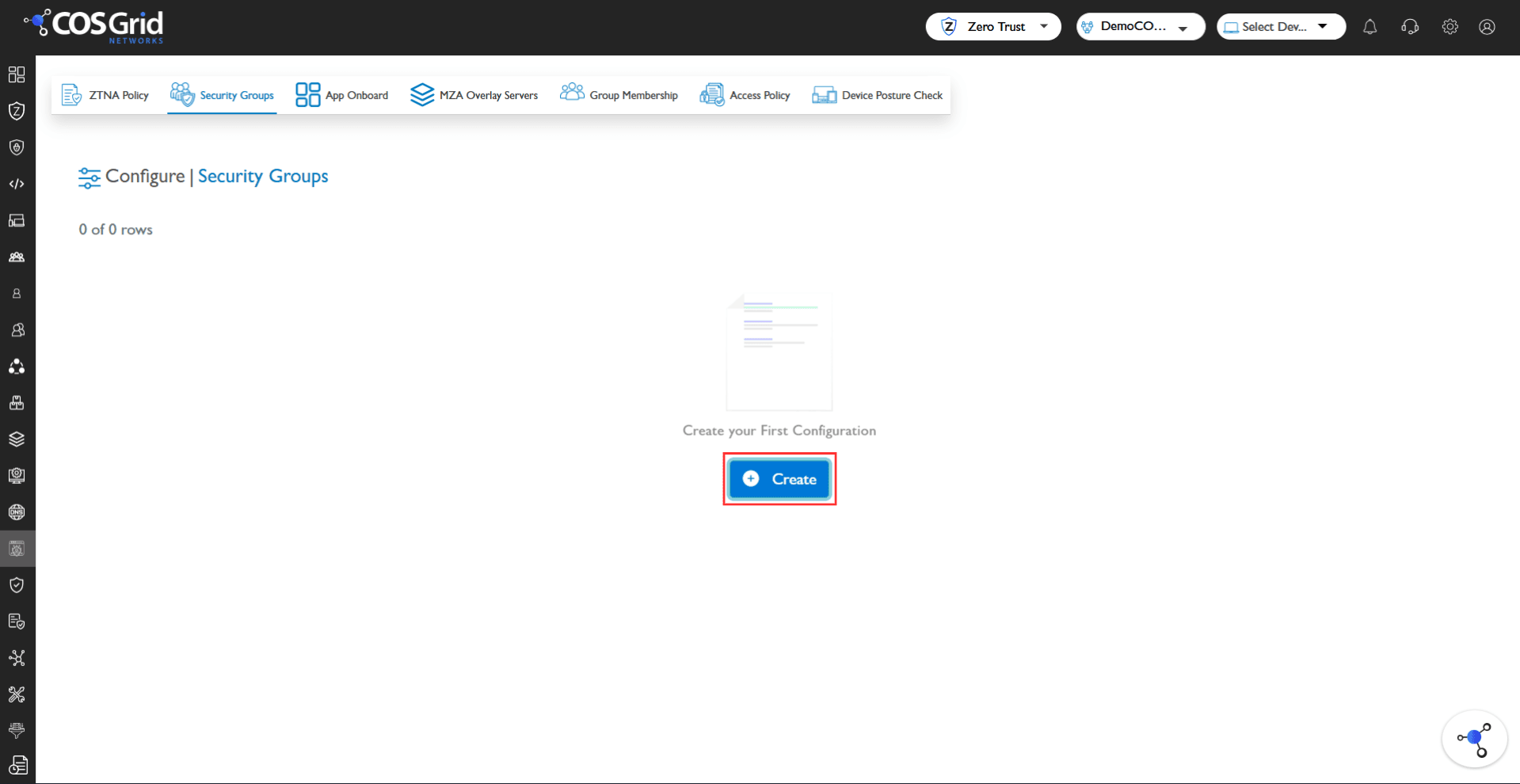
Step 1: Initiate Creation
Click Add to open the Security Group configuration panel.
Step 2: Configure Server Details
Select Service
Predefined services auto-fill Protocol and Ports
Choose Protocol (if using Custom)
Define Destination Port(s)
Step 3: Configure Source
Select Source Type:
Any → Allows traffic from all sources
Custom → Specify:
Host
Subnet
Groups
Step 4: Define Metadata
Name → Provide a clear and descriptive name
Description → Add context for easier management
Step 5: Save
Click Save to create the Security Group.
Example Configuration
Objective
Allow all TCP traffic from any host.
Configuration
Parameter | Value |
|---|---|
Service | All TCP |
Protocol | TCP |
Destination Port | Any |
Source | Any |
Name | Allow_All_TCP_AnyHost |
Description | Allow TCP traffic from any source |
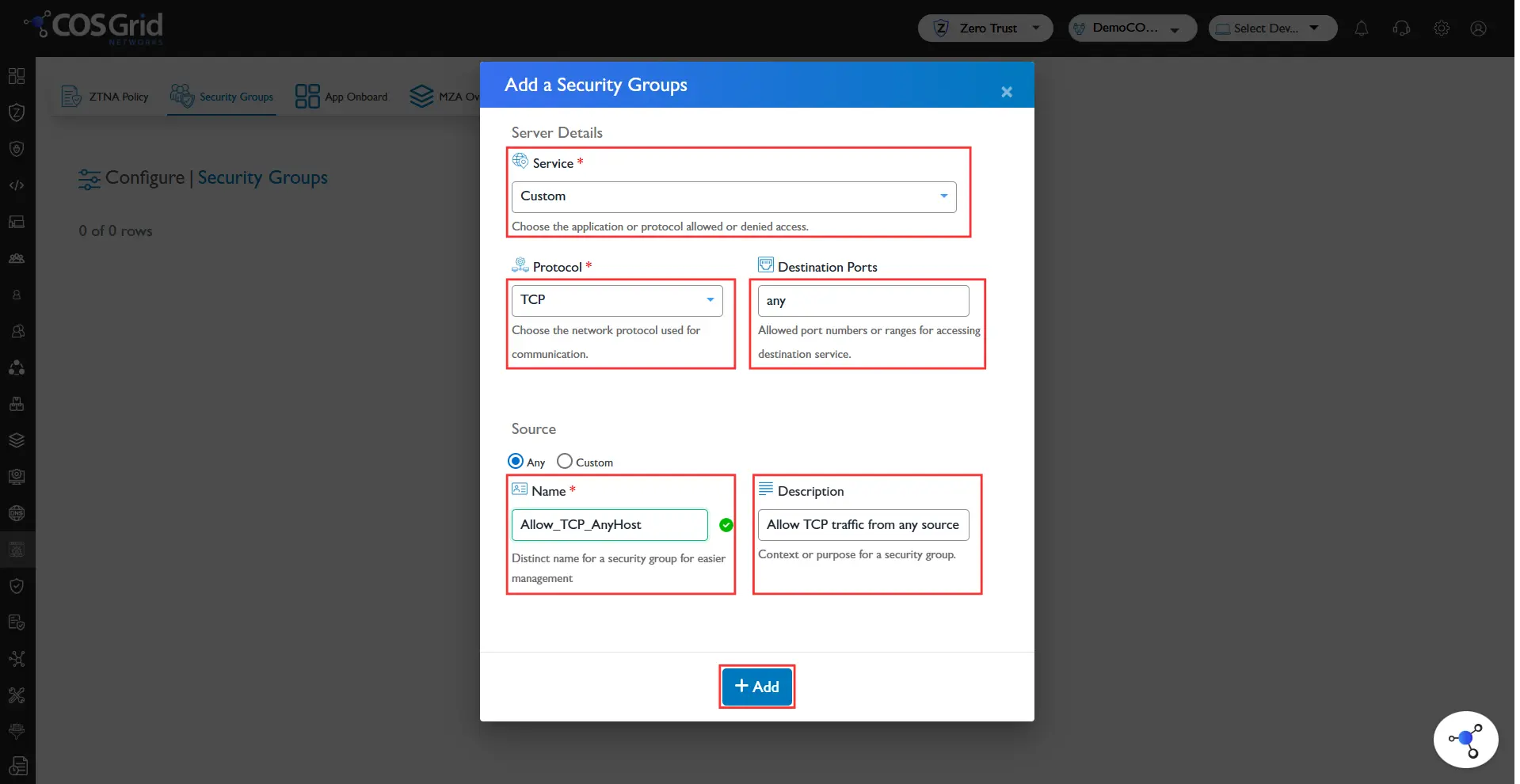
Steps
Click Add to create a new Security Group
Under Server Details:
Select Service: All TCP
Protocol auto-sets to TCP
Set Destination Port: Any
Under Source:
Select Any
Enter:
Name: Allow_All_TCP_AnyHost
Description: Allow all TCP traffic from any source
Click Save
Result
A Security Group is created that:
Allows all incoming TCP traffic
From any source
Across all ports
Best Practices
Avoid using “Any” unless absolutely necessary
Prefer least-privilege rules
Use descriptive naming conventions
Regularly audit and export configurations
Combine group-based and subnet-based policies for layered security