Z3 Connector Installation Guide
Prerequisite
Before proceeding with the installation, ensure you have completed the steps outlined in the App Connector Installation Overview.
Linux App Connector Installation
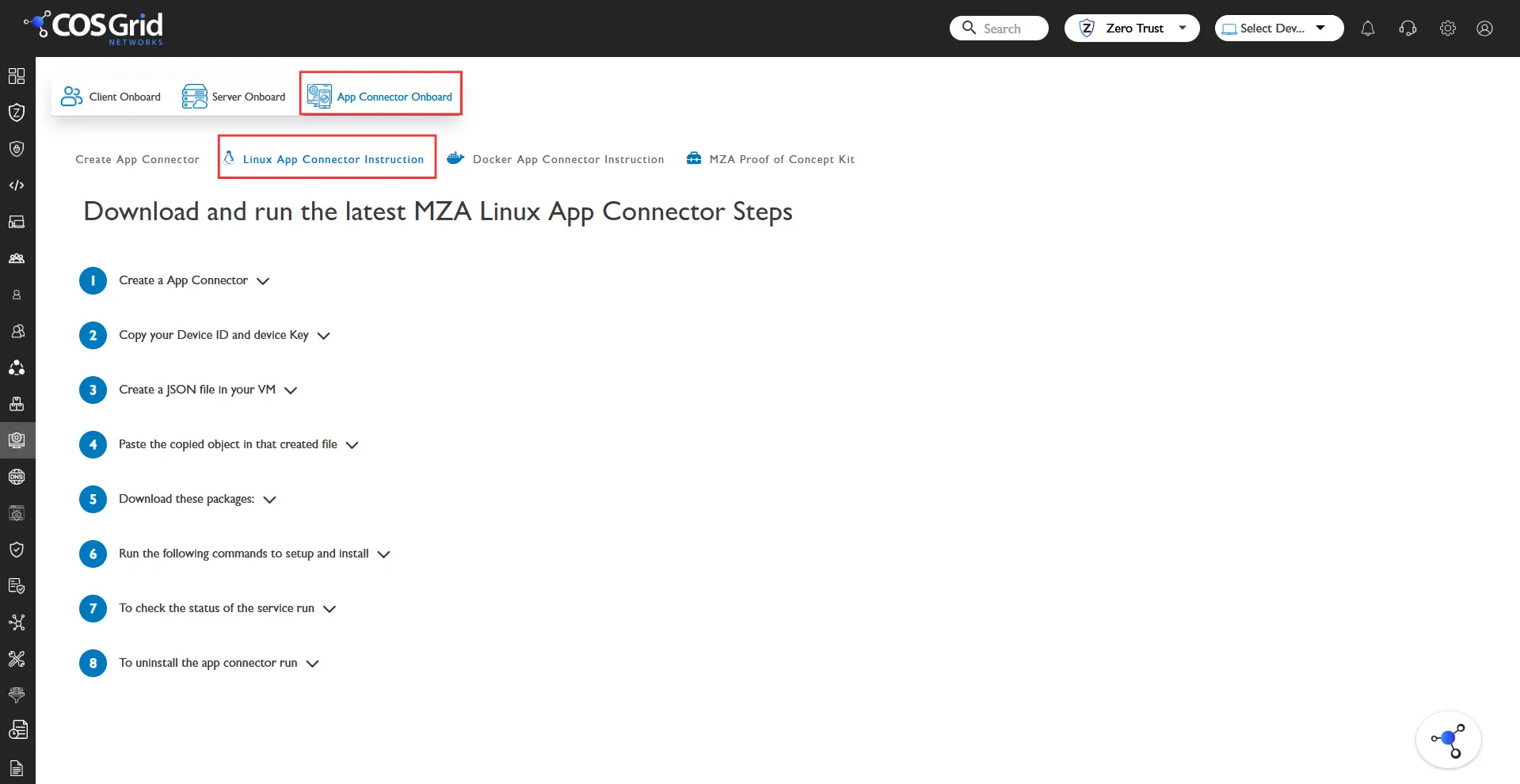
Installation Steps
Navigate to the App Connector Onboarding section in the dashboard.
Click on the Linux option to begin the installation process.
Follow the on-screen instructions provided on the page.
Important Note
Installing the App Connector using the root user may sometimes lead to issues.
It is strongly recommended to perform the installation using a non-root (normal) user with appropriate privileges.
Post-Installation Verification
To verify that the App Connector service is running:
sudo systemctl status cosgrid-mza.service
Ensure the service status shows active (running).
Profile Configuration
During installation, a profile is created automatically.
To create a new profile:
Windows Server App Connector Installation
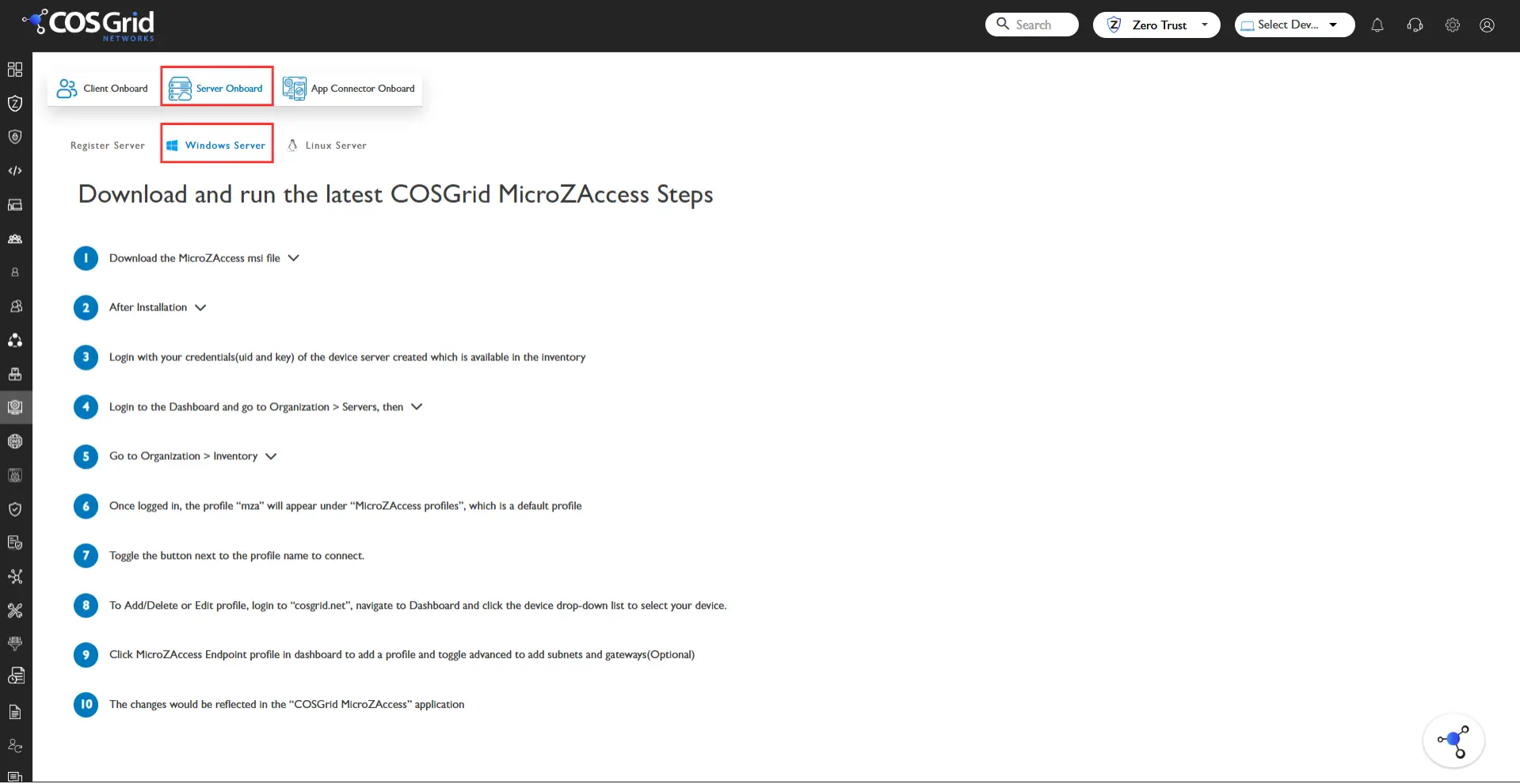
Installation Steps
Navigate to the App Connector Onboarding section in the dashboard.
Click on the Windows option.
Download the installer package.
Run the installer with Administrator privileges.
Follow the installation wizard and complete the setup.
Post-Installation Verification
Open Services (services.msc).
Locate the Cosgrid MZA Service.
Ensure the service status is Running.
Alternatively, using PowerShell: Get-Service cosgrid-mza
Profile Configuration
A profile is created during installation.
To create or modify profiles:
Docker App Connector Installation
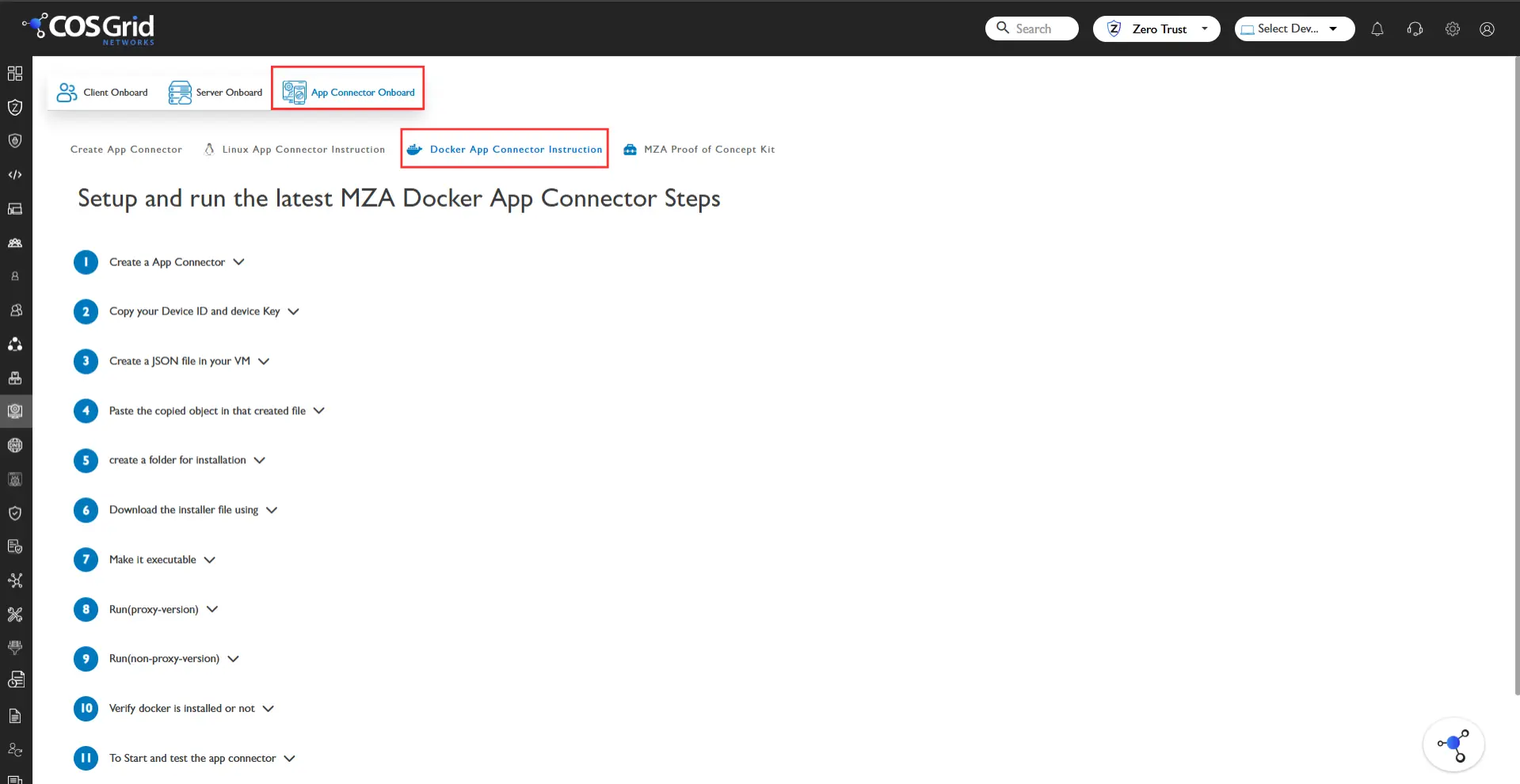
Installation Steps
Navigate to the App Connector Onboarding section in the dashboard.
Click on the Docker option.
Copy the provided Docker command.
Execute the command on the target system to deploy the App Connector container.
Important Note
Avoid running Docker commands as the root user unless required.
Ensure Docker is properly installed and running before executing the command.
Post-Installation Verification
To check the container status: docker ps
Verify that the App Connector container is running.
To check logs: docker logs <container_id>
Profile Configuration
A profile is created during deployment.
To create a new profile:
Troubleshooting Tips
Ensure network connectivity to the controller/management server.
Verify required ports are open.
Check logs if the service fails to start.
Confirm correct user permissions during installation.