Setting Up Azure AD for MicroZAccess
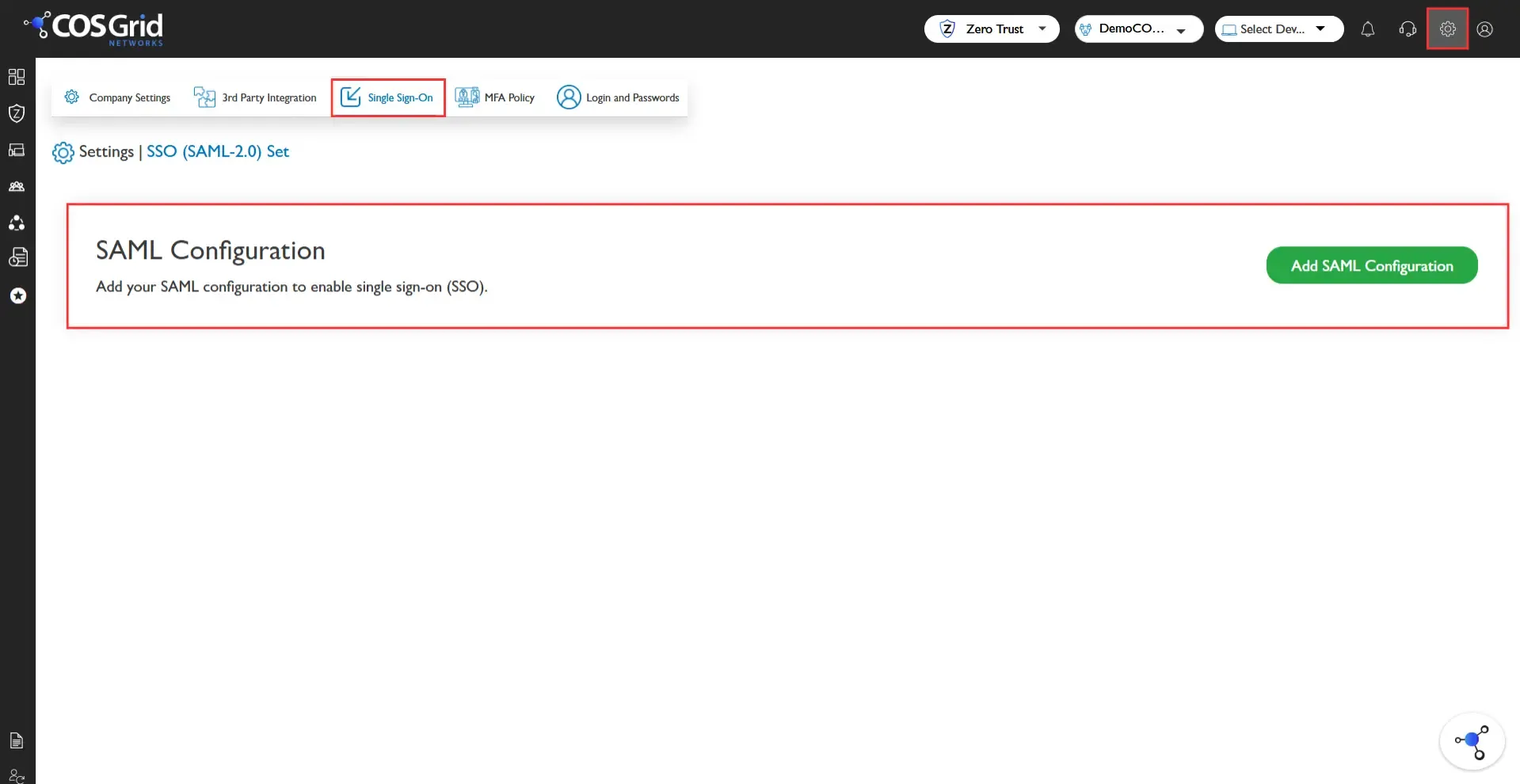
Follow these streamlined steps to configure Azure AD as your SAML Identity Provider (IdP) for COSGrid MicroZAccess:
Access Azure Portal
Log in to your Azure portal.
Navigate to Azure Active Directory > Enterprise Applications > New application.
Create Application
Click Create your own application.
Search for cosgrid and select COSGrid Networks.
Click Create.
Configure Single Sign-On
In the Getting Started section, click Set up single sign-on.
Select SAML.
Under Basic SAML Configuration, click Edit.
Enter SAML Details
Copy the Identifier (Entity ID) and paste it into both the Reply URL and Sign-on URL fields.
Save the configuration.
Retrieve Metadata URL
In the SAML Certificates section, copy the App Federation Metadata URL.
Configure MicroZAccess
Log in to the MicroZAccess Web Dashboard as an admin.
Go to Profile Info > Settings > Security > Single Sign-On.
Choose Azure Active Directory as the Identity Provider.
Paste the Metadata URL and click Save.
Your MicroZAccess platform is now configured to authenticate users via Azure AD using SAML SSO, ensuring seamless and secure access.