Multi Factor Authentication
Multi-Factor Authentication (MFA) adds an extra layer of security by requiring users to verify their identity using two or more methods before accessing their account. Even if a password is compromised, MFA ensures unauthorized access is prevented.
Cosgrid provides two MFA options:
Authenticator App (TOTP-based) – e.g., Google Authenticator, Microsoft Authenticator.
Email-based OTP – A one-time password sent to the registered email.
How to Access the MFA Policy
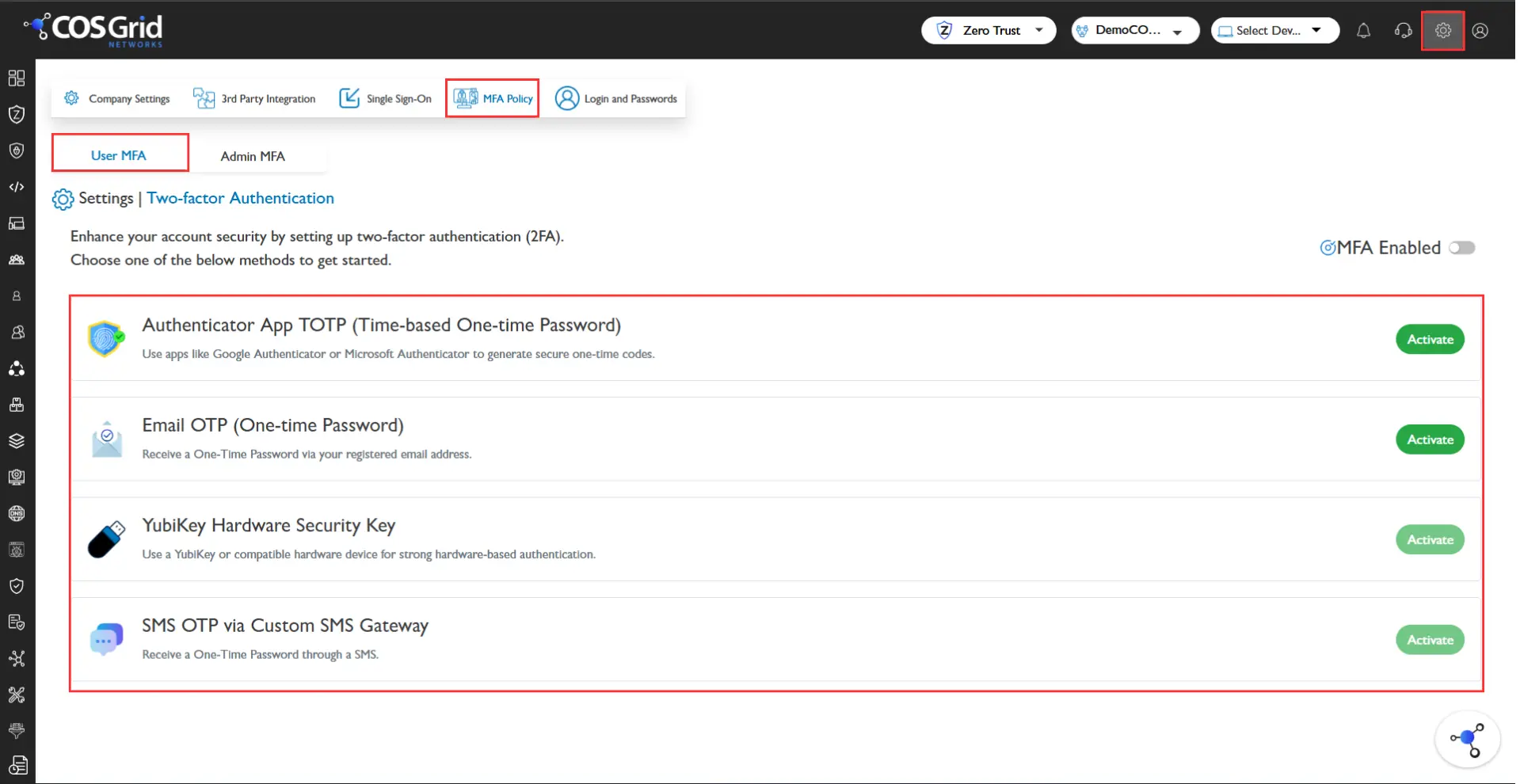
Login to your account
Go to Settings > MFA Policy.
How to Enable MFA in Cosgrid.net
Login to your Cosgrid account → Cosgrid.net.
Navigate to Settings > Login and Passwords > Security.
Scroll down to Two-Factor Authentication (2FA).
Choose your preferred method:
Authenticator App (TOTP) – Scan the QR code using an authenticator app and enter the generated code.
Email OTP – A code will be sent to your registered email for login verification.
Follow the on-screen instructions to complete setup.
How to Enable MFA in MicroZAccess App
Open the MicroZAccess (MZA) App and log in.
Tap the Menu → go to Security.
Select Enable Two-Factor Authentication (2FA).
Follow the guided steps to configure MFA (Authenticator App or Email OTP).
Complete verification to activate 2FA.
How to Disable MFA
Cosgrid.net → Navigate to Settings > Security > Two-Factor Authentication → click Disable.
MicroZAccess App → Open Menu > Security → select Disable Two-Factor Authentication.
Best Practice Recommendation:
Always prefer the Authenticator App (TOTP) method over email OTP for stronger security.