User Account Creation
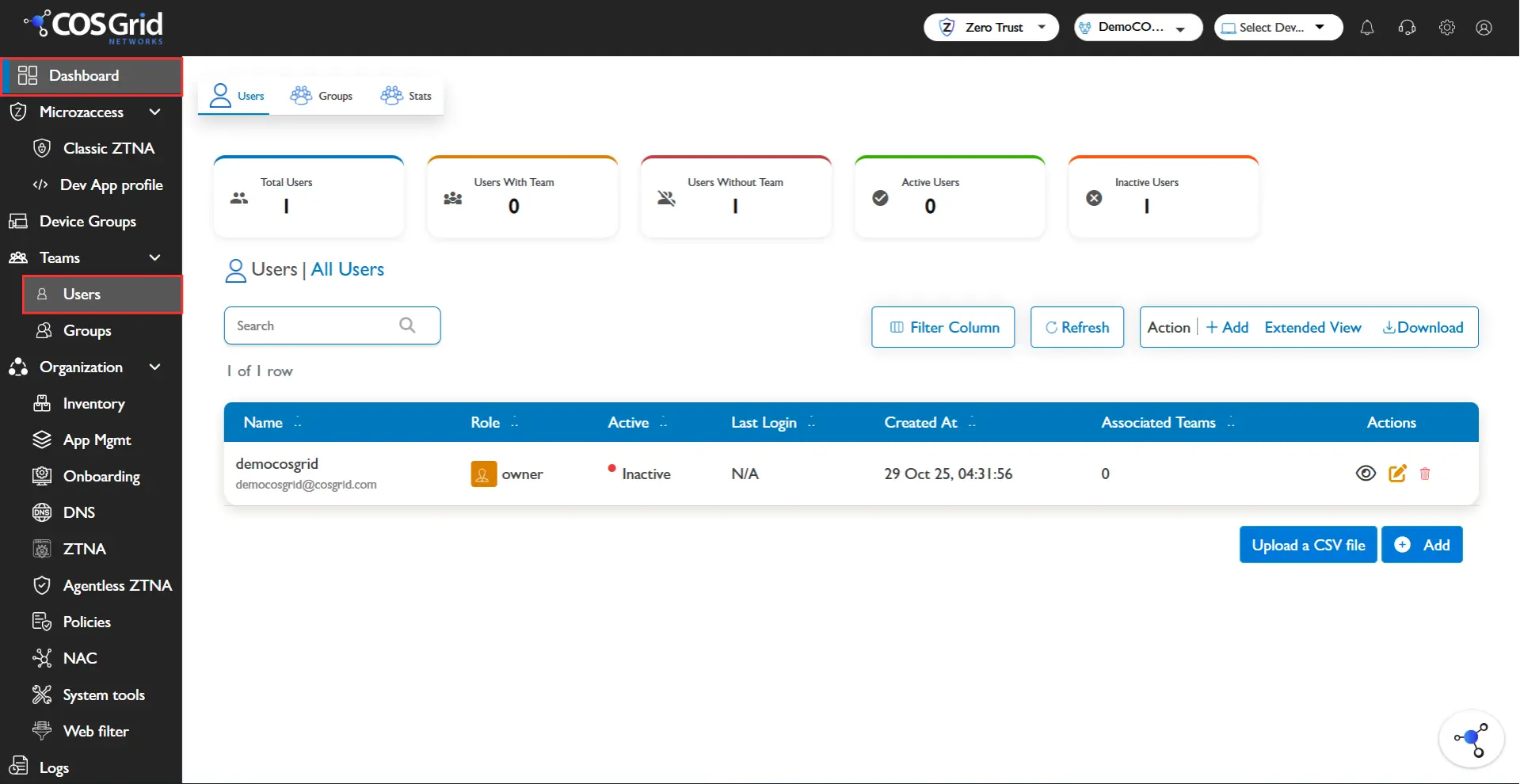
Navigation: Login > Sidebar > Teams > Users Test
Roles and Permissions
Overview
The system uses a role-based access control (RBAC) model to manage user privileges. Each role has predefined functions and permissions, ensuring users only have the access necessary for their responsibilities. This minimizes security risks and simplifies administration.
Role Definitions
Admin
Description: Users with elevated privileges to manage core aspects of the ZTNA system.
Capabilities:
Create, edit, and delete user accounts.
Configure system-wide policies and rules.
Perform troubleshooting and advanced configuration changes.
Full visibility and control across all network resources.
Editor
Description: Users with limited administrative access to manage certain resources.
Capabilities:
Log in and access assigned applications.
Edit existing resources and configurations.
Cannot create new policies or rules.
Suitable for departmental admins or power users.
Viewer
Description: Users with read-only access for monitoring and auditing purposes.
Capabilities:
Log in and view assigned resources.
Cannot make any changes or modifications.
Ideal for compliance teams, auditors, or supervisors who need visibility without modification rights.
Guest User
aDescription: Temporary or external users who require authentication but have no dashboard access.
Capabilities:
Authentication only (e.g., for temporary app access).
No ability to view, edit, or manage resources.
Intended for external contractors, vendors, or short-term collaborators.
Permissions Matrix
Role | Login to MicroZAccess App | Login to Cosgrid.net | Edit Existing Resource | Create New Policy / Rules |
|---|---|---|---|---|
Admin | Yes | Yes | Yes | Yes |
Editor | Yes | Yes | Yes | No |
Viewer | Yes | Yes | No | No |
Guest | No | No | No | No |
Best Practices
Assign Admin role sparingly – only to trusted IT/Infosec staff.
Use Editor roles for departmental managers who need to manage limited resources.
Provide Viewer roles to auditors and compliance staff for transparency.
Restrict Guest roles to external/temporary users with the least privileges.
Regularly review role assignments to ensure least-privilege access.
In short: Roles define who can do what in the ZTNA system, balancing security with operational flexibility.
User Onboarding
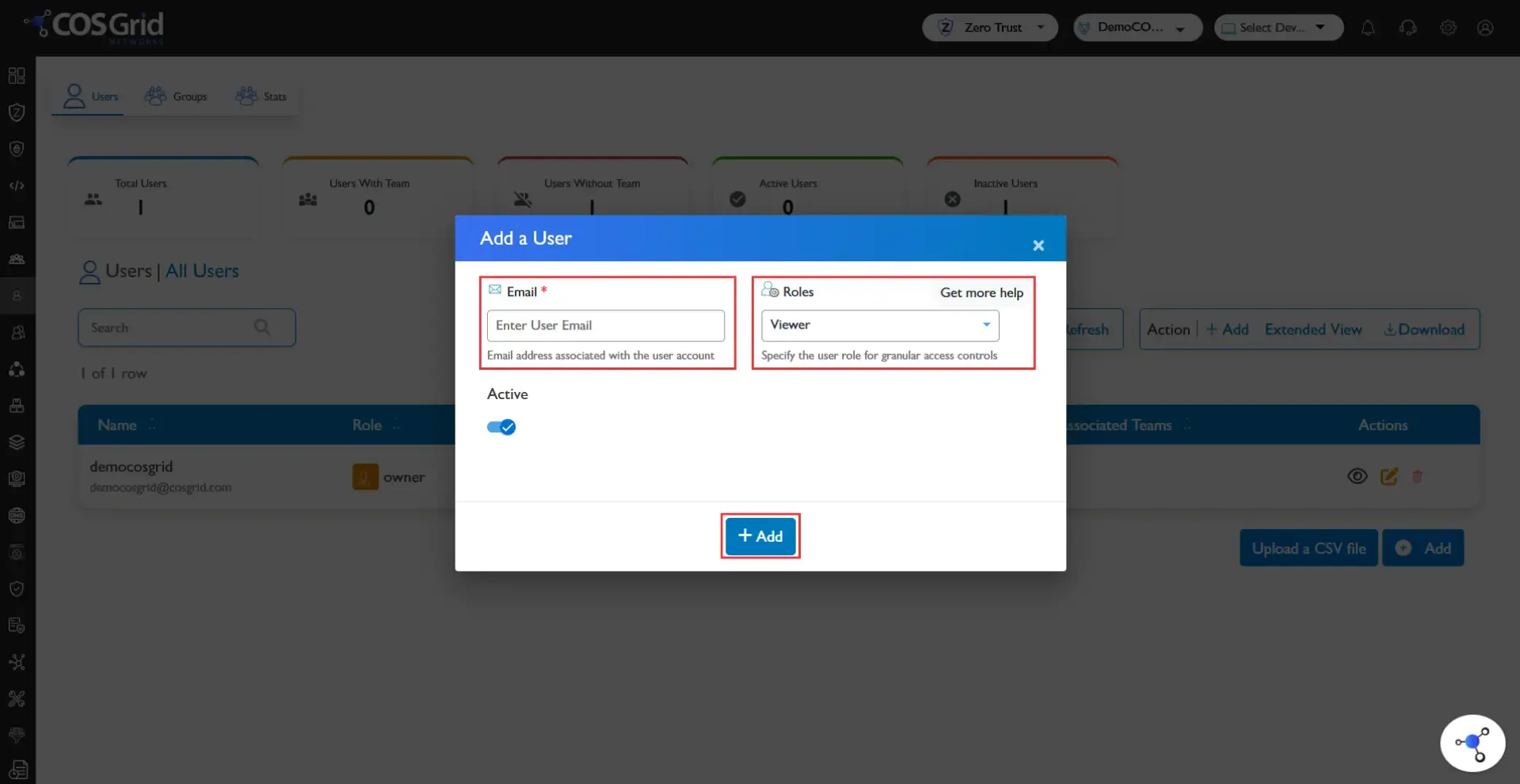
Guide:
Click Add
Enter the Email
Select the role
Select status (Active / inactive)
The login credentials will be sent to the user's mail.
For bulk creation, we support csv based creation where we also provide templates.
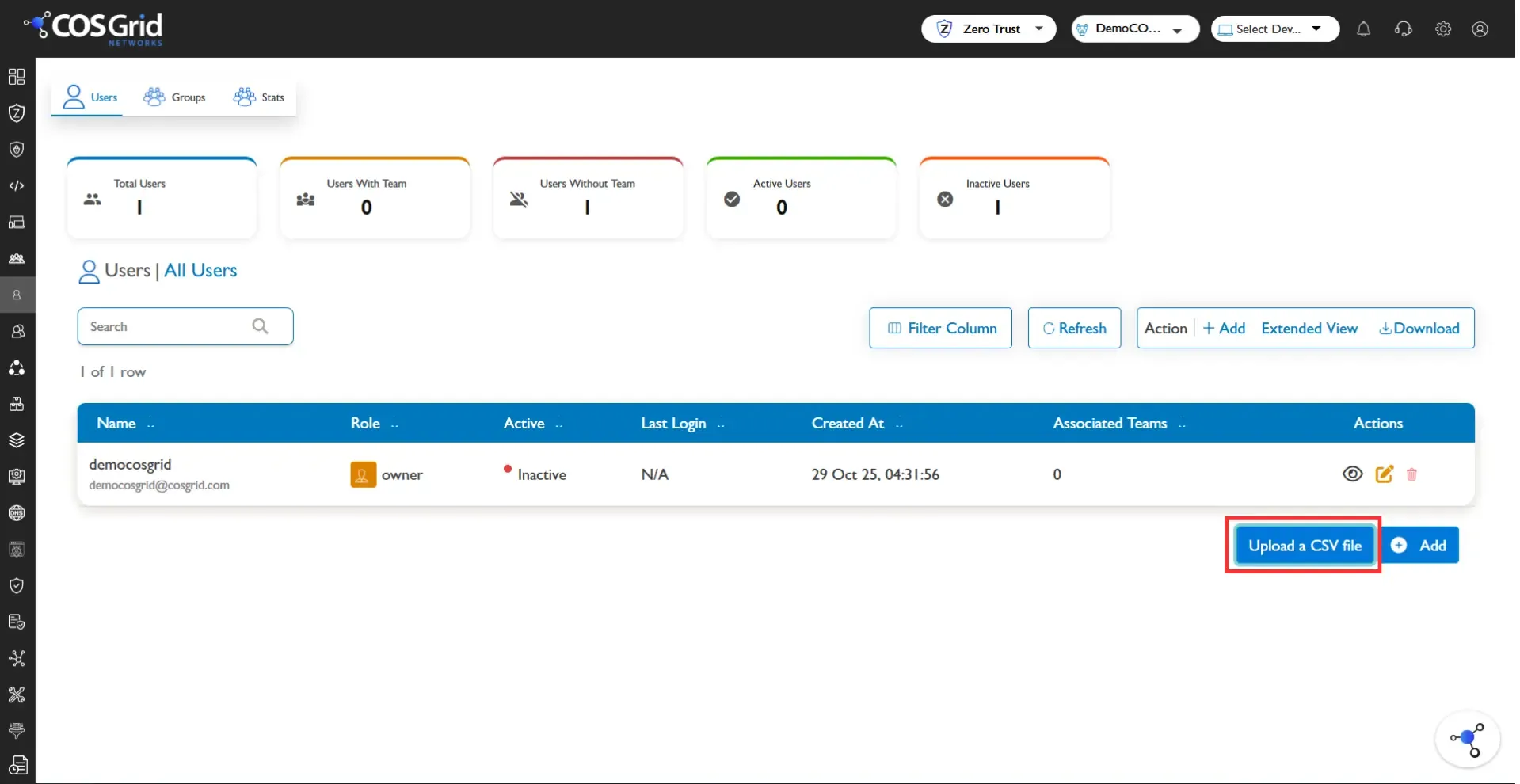
Guide:
Navigate to Teams > Users
Scroll down to the bottom, click upload a CSV file
An input box opens and upload the csv file
How to get a CSV template for bulk creation ?
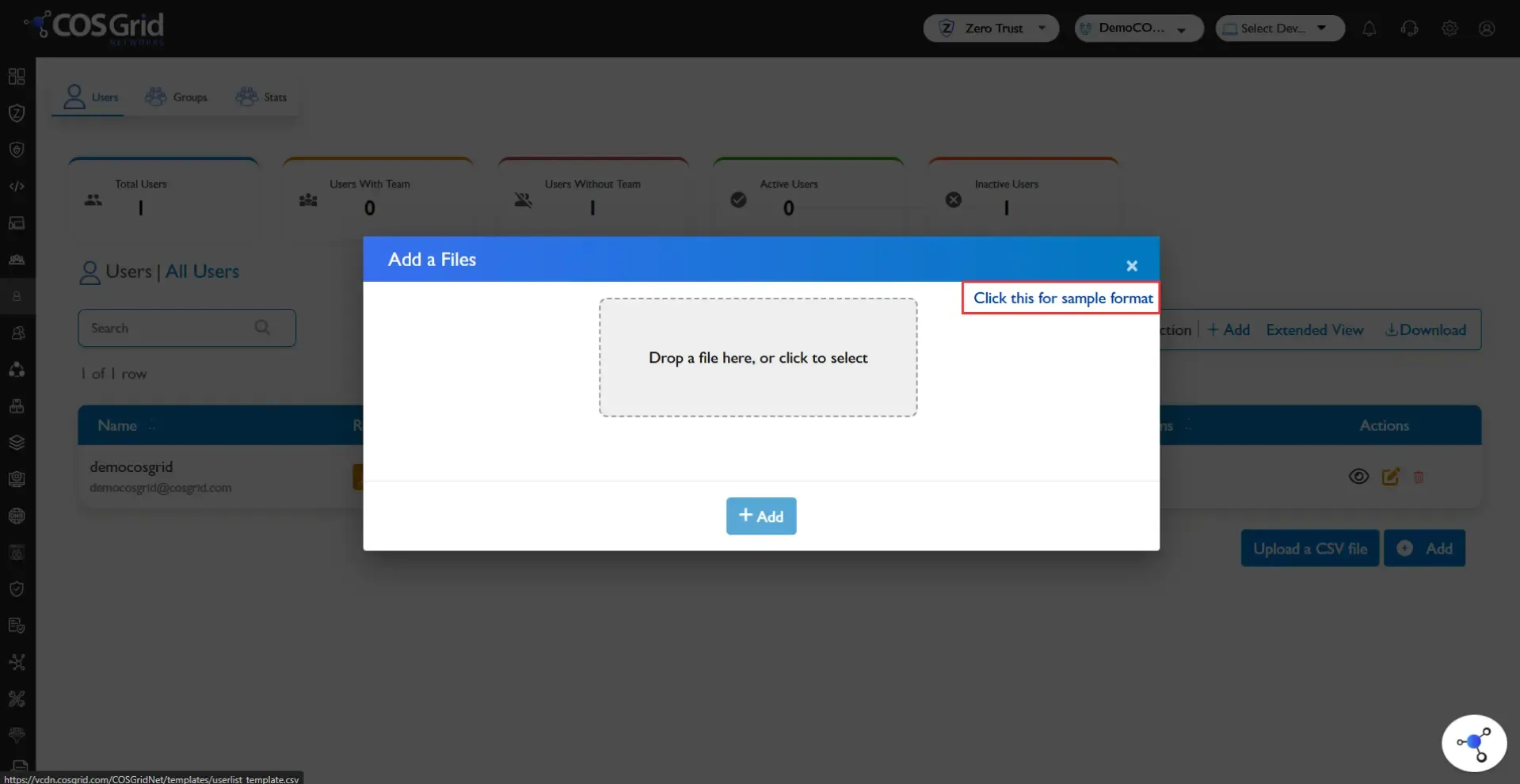
Navigate: Teams > Users
Scroll down and click Upload as a CSV file
Input box opens, there you’ll see a hyperlink for template
Click on it and the temple will start downloading on the browser.